

Pages
Building Blocks in Detail
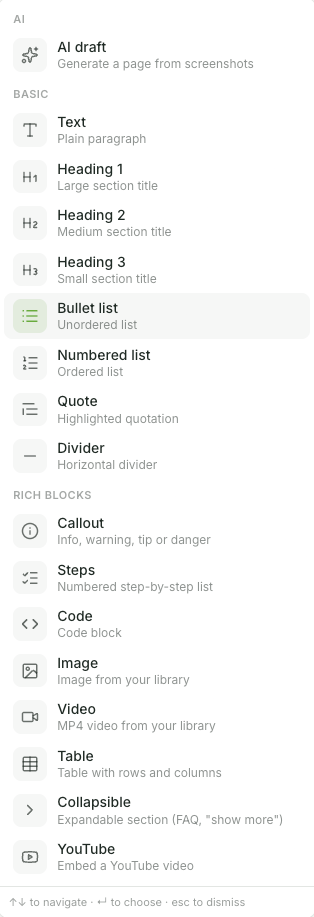
Insert blocks at the start of a line with "/" (or via the ⊕ block handle, see next page). Continue typing after the / to filter.
Text & Outline
Text – a standard paragraph. The default for body text.
Heading 1–3 – three levels for structuring. Use Heading 1 for the page section, and Headings 2 and 3 for subpoints. They also serve as navigation aids on long pages.
Listen
Bullet list – unordered list for points of equal rank.
Numbering – a sequentially numbered list when the order matters.
Emphases
Block quotation – indented text, used for quotes or emphasis.
Dividing line – a horizontal line used to visually separate sections.
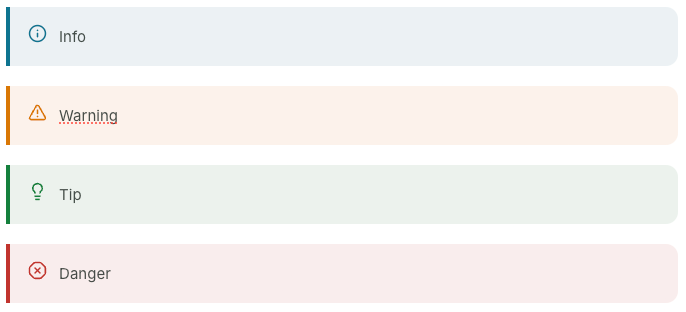
Note – a colored box for important remarks, available in four styles: Info, Warning, Tip, Danger. You can change the style at any time using the block handle (see next page).
Code – a code block with language selection and syntax highlighting, ideal for commands or code examples.
Processes
Steps – an automatically numbered step-by-step guide. Each step can contain its own text, lists, images, or notes. Press Enter to start a new step, Shift + Enter to start a new line within the step.
Media & AI
Image– insert an image from the media library (see details below Insert images)
AI design– generates a complete page from screenshots (see details below AI writing assistant)