

Pages
Rearrange & edit blocks
Hover over a block, and a small handle area with two buttons appears to its left.
+ Block below
Add a new block below and immediately open the "/" menu so you can select the desired component right away.
⋮⋮ The handle (two functions)
Drag: Hold the handle and drag the block to a new position. On long pages, the view automatically scrolls at the edge.
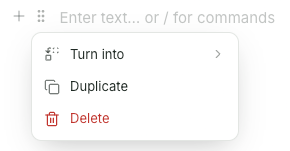
Click: opens the block menu.
Turn into – Block type switch (for text, headings, lists, quotes, code).
Duplicate – insert a copy directly below.
Delete – remove the block.
In case of a Callout, also select the style (Info / Warning / Tip / Danger).
Note
The handle appears when you hover over a block with your mouse (desktop). It is not available on tablets without a mouse.