

Pages
Create space
A space is the container for documentation. Ideally, create a separate one for each client or project.
Here's how to create a Space
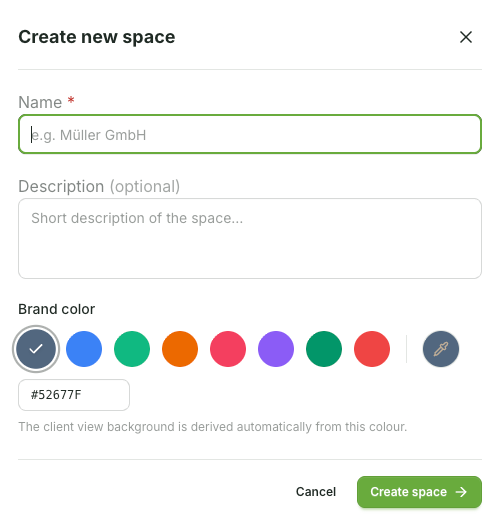
Select the New Space button in the Spaces overview (top right). For your first Space, the empty start screen will guide you there with the same button. Fill out the dialog.
Name (required field) – typically the customer or project name.
Description (optional) – appears for categorization on the Space map.
Brand color – accent color for map and portal, via preset or custom color value.
Creating will take you directly to the editor for the new Space.
Good to know
You can add/edit a Logo after creating in Settings → Branding see Space Settings & Branding. Without a logo, the card displays the initials on the brand color.
A new Space is initially as draft and thus not released. Publishing is described in Publish & Share.
You can later duplicate a Space via the ⋯ menu on a card - handy for using it as a template for similar clients.